Grant Tracking Spreadsheet With a Tab Per Grant and a Master Summary Tab
How to structure a grant tracking spreadsheet with one tab per grant: a master summary tab that reads fixed cells, a template tab to copy, the rollup formulas, and where the design breaks.
In this article (9)
- Quick Answer: How Should a Grant Tracking Spreadsheet With a Tab Per Grant Be Structured?
- The One-Tab-Per-Grant Workbook: Summary, Grant Tabs and a Template
- What Goes on Each Grant Tab
- The Grant Tracker Master Summary Tab
- Where Applications Live Before They Get a Tab
- Where a One-Tab-Per-Grant Tracker Breaks
- Adding, Closing and Maintaining Grant Tabs
- FAQ
- Build the Summary First, Then One Grant Tab
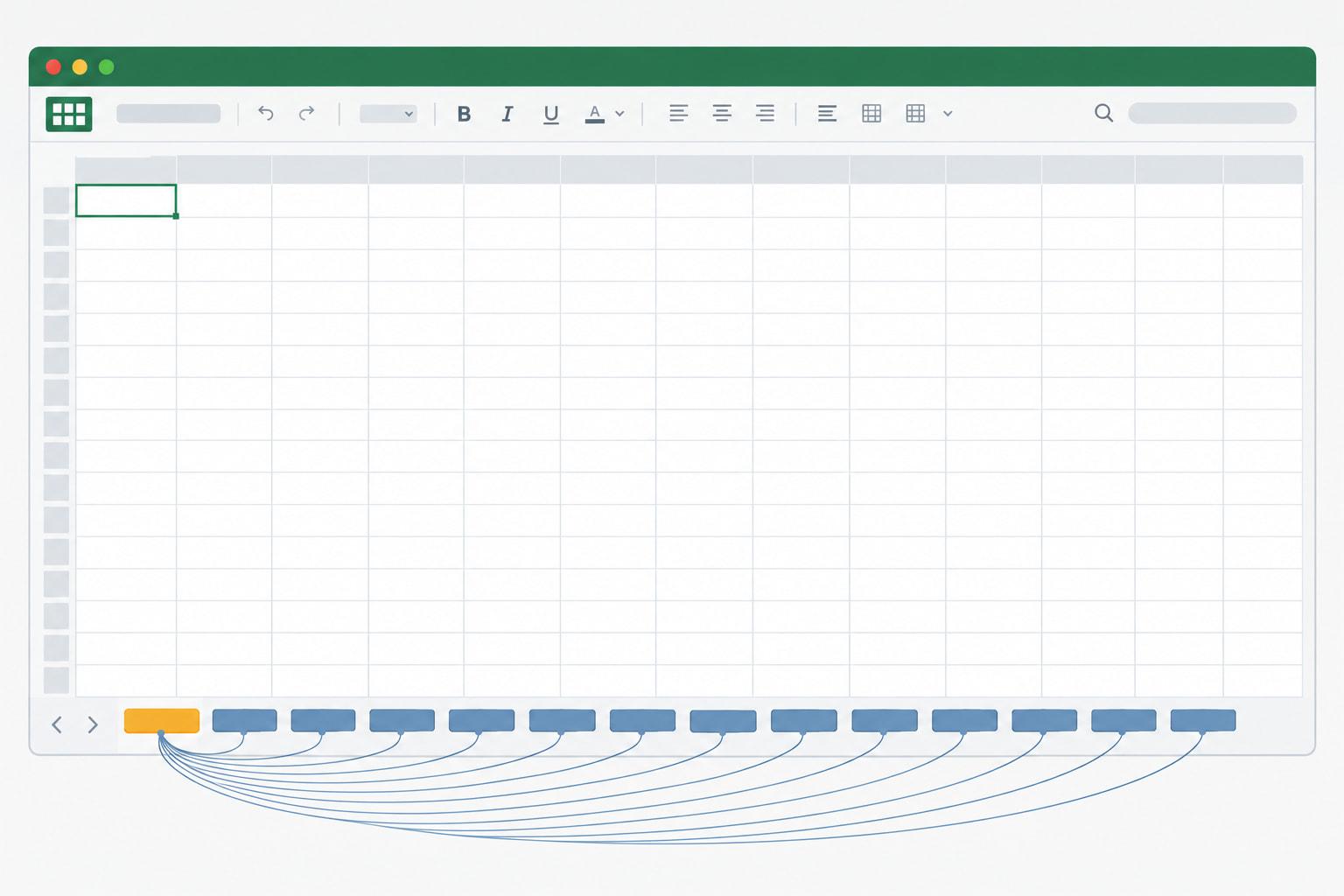
A grant tracking spreadsheet with one tab per grant gives every award its own sheet, built from the same template, with a master summary tab in front that reads each one. The request can arrive as an instruction: a poster building a nonprofit tracker was told "they want each individual grant to have its own tab" (Reddit thread 1qx3lpf, read September 2026). In a second thread, a public library's sole staff member asking for affordable grant software got the same answer, a shared Google Sheet with a tab per grant, from one commenter repeated many times (Reddit thread 1rnqqwt, read September 2026).
The design works when every grant tab is laid out identically and the summary reads the same cells from each. It fails when tabs drift apart, when formulas start reaching from one grant into another, or when someone needs every deadline across grants in one list. A team with only a few grants may not need tabs at all; a single-sheet grant tracking spreadsheet holds one row per grant.
Quick Answer: How Should a Grant Tracking Spreadsheet With a Tab Per Grant Be Structured?
A grant tracking spreadsheet with a tab per grant needs a master Summary tab first, one tab per awarded grant copied from a Template tab, and an Applications tab for grants not yet awarded. Every grant tab keeps the same blocks in the same cells: basics, a simple budget, and deliverables. The Summary reads only those cells.
Free download: One-tab-per-grant tracker workbook with summary tab as Excel .xlsx. No email address required.
The One-Tab-Per-Grant Workbook: Summary, Grant Tabs and a Template
The workbook has one tab per awarded grant, a Template tab those tabs are copied from, and a Summary tab in front that pulls from each. One commenter laid the workbook out as "Summary | Grant 1 | Grant 2 | Grant 3 | Template," with the Summary "all pulled from each individual grant tab," and another called it "a master tab that compiles whatever data you choose from the other tabs" (Reddit thread 1qx3lpf, read September 2026).
Four rules hold the architecture together. Every grant tab has the same layout, because the Summary reads fixed cell addresses. Formulas point one way: a grant tab never refers to another grant tab, and only the Summary reads across grant tabs. Layout changes happen on the Template first and then on every copy. And each grant tab has a short unique name, such as the grant's ID, which is also the name typed in the Summary's first column.
The one-way rule matters most. The highest-scored comment in the thread said "what they want is a database, not a spreadsheet," calling the workbook "Easily broken by anyone else who uses it because the whole thing will have interdependent cell formulas" (Reddit thread 1qx3lpf, read September 2026). A grant tab that does all its own math, with the Summary only reading finished results, keeps that web from forming.
Tab count is not the constraint. Microsoft lists "Sheets in a workbook" as "Limited by available memory (default is 1 sheet)" (Microsoft Support, Excel specifications and limits, September 2026). The practical limit is how many tabs your team can keep identical.
What Goes on Each Grant Tab
Each grant tab holds three working blocks in fixed positions, the grant's basics, a simple budget and its deliverables, plus a key-cells block of formulas that the Summary reads. One commenter's per-grant tab holds "the basics (amount, dates, funder, restrictions), a simple budget section (allocated/spent/remaining), and a section for deliverables, deadlines, and reporting requirements" (Reddit thread 1qx3lpf, read September 2026).
Together, the basics and budget blocks cover what a poster in that thread wanted recorded: "grant amount, costs, scope of the services provided through the grant, as well as what activities the grants allow or don't allow" (Reddit thread 1qx3lpf, read September 2026). Paste the funder's wording into the restrictions cell, so the rule reads the same as the award letter. The guide to grant tracking spreadsheet columns explains each field in more depth.
For a federal award, the basics block has room for what 2 CFR 200.211(b) requires the award to state, including the "Unique Federal Award Identification Number (FAIN)," the "Period of Performance Start and End Date" and the "Indirect Cost Rate for the Federal award" (2 CFR 200.211(b), eCFR, current as of September 2026).
The deliverables block is what makes a tab more than a record. Each report, draft or other obligation gets a row with its due date and owner, and the flag marks it Overdue when the due date passes with nothing submitted, or Due soon inside the warning window set on the Lists tab. What those reports contain is set out in our guide to reporting requirements and templates.

The Grant Tracker Master Summary Tab
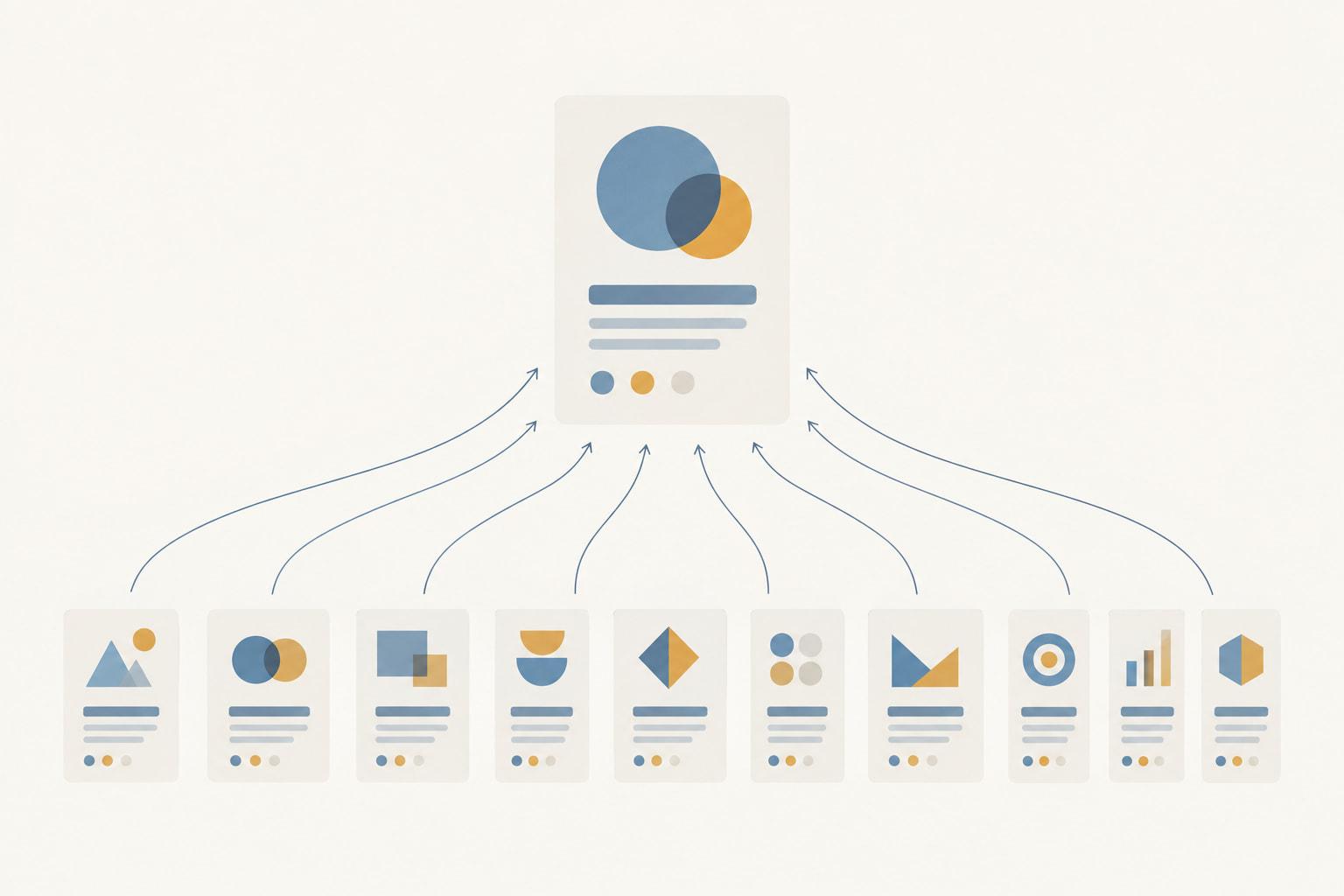
The master summary tab is the one page a director reads: one row per grant tab, every value pulled by formula, and totals at the bottom. The only thing anyone types on it is the name of each grant tab.
Each row reads fixed cells on its grant tab: funder, grant name, status, amount awarded and award end from the basics block, and spent, remaining, share spent, next due date, next deliverable, open deliverables, overdue and due soon from the key cells. In the download, each formula builds its reference from the tab name typed in the first column, so adding a grant means copying the Template, renaming the copy and typing that name in the next Summary row. If the typed name matches no tab, the row flags the mismatch in place of showing an error.
The two sample grants in the download produce these Summary rows.
Illustrative figures, not data from a real organization.
Sort the Summary by next due date before each staff meeting and the list reads as a to-do order. The totals row adds awarded, spent and remaining across tabs, and the overdue count is the first number worth asking about. Charts and a one-page view for a board belong on a separate grant tracker dashboard that reads the Summary.
Where Applications Live Before They Get a Tab
Applications belong on one Applications tab, one row each, and a grant earns its own tab only when it is awarded. That ties the tab count to awards, not to ideas.
When an application is awarded, the handoff runs in this order. Copy the Template and rename the copy with the grant's short ID. Fill the basics block from the award letter, then enter the budget lines and every deliverable the award requires. Type the tab name in the next Summary row. Finally, set the application's status to awarded and record the tab name in its Grant tab column, so anyone can trace the award back to the application. The rest of award setup is in our checklist for setting up a new award.
A declined application keeps its row. Over a few cycles, the Applications tab becomes a record of what you asked each funder for and what came back. In the download, the two sample grants also appear there as awarded rows, with Grant 1 and Grant 2 recorded as their tab names.

Where a One-Tab-Per-Grant Tracker Breaks
The design breaks at four points: questions that cross grants, several editors at once, change history, and any move into a tool that reads one tab.
Cross-grant questions come first. Every deliverable lives on its own grant's tab, so a combined list of this quarter's due dates takes opening every tab, or building another tab that gathers them, which reintroduces the cross-tab formulas the design avoids.
Several editors can work in the file when it is set up for co-authoring, which on Windows desktop needs "a Microsoft 365 subscription," the latest Excel for Microsoft 365, and a workbook "in .xlsx, .xlsm, or .xlsb file format" stored on "OneDrive, OneDrive for Business, or a SharePoint Online library" (Microsoft Support, co-authoring, September 2026). That setup is fragile: the most common cause of a locked file is someone opening it in a version of Excel that does not support co-authoring, and if just one person does, Microsoft says "everyone else will get the 'locked' error" (Microsoft Support, co-authoring, September 2026). The layout suits Microsoft's own advice: "If you don't want to have conflicts with other people, assign areas or sheets to each person" (Microsoft Support, co-authoring, September 2026). One owner per grant tab is exactly that. The Summary and Template need one owner too, since "In general, the last change that is saved, either with the Save button or automatically with AutoSave, is the one that 'wins'" (Microsoft Support, co-authoring, September 2026).
History is limited. Show Changes covers "up to 60 days" and does not show formatting changes or hiding and filtering (Microsoft Support, Show Changes pages, September 2026), so a status change older than that window will not appear there. Write the date and reason for any changed due date or amount in the deliverable's notes column.
Moving to software is the hardest break. monday.com and Smartsheet import only the first tab, Airtable turns every sheet into its own table, and Microsoft Lists imports one Excel table of up to 5,000 rows (monday.com Support, Import files from Excel, August 17, 2026; Smartsheet Learning Center, Airtable Help Center and Microsoft Support, September 2026). A grant tab's stacked blocks are not a table any of them can read as records. The Summary is the tab shaped like a list of grants, one row each, so a copy of it pasted as values is the file to import. The single-sheet grant tracking spreadsheet guide covers the signs that a workbook has reached this point.
GrantCue keeps each grant as a record in a kanban pipeline, with tasks, comments, reminders, a calendar feed for deadlines and an activity log on every plan, Free included (GrantCue pricing page, October 2026). A tabbed workbook moves in through CSV and Excel import, also on every plan, with the Summary's one-row-per-grant table as the natural starting file, and the list of what each plan includes shows how many grants each plan tracks.
Adding, Closing and Maintaining Grant Tabs
A one-tab-per-grant workbook stays reliable when the routines for adding a grant, updating spending and closing a grant never change. Write them on the Read Me tab and follow them the same way every time. For how these routines fit the rest of the grant cycle, see our guide to grants lifecycle management.
Monthly, update the spent column on each grant tab from your accounting system, one total per budget line. The tab carries line totals, not transactions: a ledger with one row per payment belongs in an expense ledger built for grants, and a line-by-line variance check against the approved budget belongs in a variance tracker for grant budgets. ICAEW's principle 14 is "Avoid using fixed values within formulas" (ICAEW, 20 principles for good spreadsheet practice, 2024 edition), so fixed values such as the warning window live on the Lists tab.
Protect each tab's key cells against accidental typing, and treat the protection as nothing more. Microsoft states that "Worksheet level protection is not intended as a security feature. It simply prevents users from modifying locked cells within the worksheet" (Microsoft Support, Protection and security in Excel, September 2026).
When a grant ends, set its status to closed, move the tab to the end of the workbook and leave it there. Do not delete it: federal recipients and subrecipients must "retain all Federal award records for three years from the date of submission of their final financial report" (2 CFR 200.334, eCFR, current as of September 2026), and the Summary row can keep reading a closed tab until you remove the name. Change the Template only between reporting cycles, and when you do, copy the change onto every open grant tab the same day, so the Summary's cell addresses stay true everywhere.
FAQ
Should Each Grant Have Its Own Tab in a Tracker?
It works for a small portfolio with one owner per grant, because each tab holds that grant's basics, budget and deliverables in one place, and Microsoft's co-authoring advice is to "assign areas or sheets to each person" (Microsoft Support, September 2026). It strains when you need every deadline across grants in one list, or when you want to import the workbook into a tool that reads only the first tab.
What Goes on a Grant Tracker Master Summary Tab?
One row per grant tab, pulled by formula: funder, status, amount awarded, spent, remaining, share spent, award end, next due date, next deliverable, and open, overdue and due-soon counts, with totals at the bottom. The only typed entry is each grant tab's name. Protect its formula cells so nobody types over a figure the Summary is supposed to read from a grant tab.
Where Do Applications Go in a One-Tab-Per-Grant Tracker?
On one Applications tab, one row each, with funder, opportunity, amount requested, internal and funder due dates, owner, status and decision date, plus formulas that count days to the funder's deadline and flag anything overdue or due soon. An application gets its own grant tab only when it is awarded, and its row then records that tab's name, so the tab count follows awards.
How Do You Add a New Grant to a One-Tab-Per-Grant Tracker?
Copy the Template tab, rename the copy with the grant's short ID, and fill the basics block from the award letter. Enter the budget lines and every deliverable with its due date and owner, then type the tab name in the next empty row of the Summary. Check that the Summary row fills in, then record the tab name on the application's row.
Can a Workbook With One Tab Per Grant Be Imported Into Grant Software?
Not in one step. monday.com and Smartsheet import only the first tab, Airtable turns every sheet into its own table, and Microsoft Lists imports one Excel table of up to 5,000 rows (monday.com Support, August 17, 2026; Smartsheet Learning Center, Airtable Help Center and Microsoft Support, September 2026). Paste the Summary onto a new first tab as values, import that one-row-per-grant table, then add each grant's deliverables in the new tool.
Build the Summary First, Then One Grant Tab
Open the download, delete the two sample grant tabs along with their Summary and Applications rows, and add one real award: copy the Template, rename the copy with the grant's ID, and fill the basics, budget and deliverables from the award letter. Type its name on the Summary and check that every column fills in before you add a second grant.
Then move your pending applications onto the Applications tab, name an owner for each grant tab on the Read Me tab, and set the warning window on the Lists tab. Keep the Summary as the first tab, the page a director opens before any grant tab.