Grant Tracking Spreadsheet Template for Excel: Columns, Formulas and When to Upgrade
How to build a grant tracking spreadsheet template in Excel: the tabs and columns to set up, three working formulas, status rules, and the limits that mean it is time to upgrade.
In this article (11)
- Quick Answer: What Should a Grant Tracking Spreadsheet Include?
- How to Build a Grant Tracking Spreadsheet Template in Excel
- The Three Formulas That Matter
- Recommended Statuses
- Deadline Fields
- Spreadsheet Rules
- Example Filled Row
- The Two Limits That Justify Moving Off a Spreadsheet
- Moving the Tracker Into Software
- FAQ
- Next Step: Build the Tracker Tab Today, Add Reports Next
A grant tracking spreadsheet is a workbook that lists every grant your organization is pursuing or managing, one row per grant, with the funder, amount, deadline, owner, status and reports due. Built with care, it can run a small grant program for years; built loosely, it becomes the tracker every new hire replaces with their own.
The template is three tabs you can rebuild in Excel in one sitting: a Tracker with one row per grant, a Reports tab with one row per report owed, and a Lists tab that holds the dropdown values. If your spreadsheet is already hard to maintain, read the grant tracking spreadsheet alternative guide first.
Quick Answer: What Should a Grant Tracking Spreadsheet Include?
A grant tracking spreadsheet should hold one row per grant with the funder, grant name, amount requested, deadline, status, owner and next action, plus a Reports tab with one row per report due after award. Add formulas that flag deadlines coming due, count days to the next report and subtract spending from the award. Keep statuses in a dropdown list.
How to Build a Grant Tracking Spreadsheet Template in Excel
Build the template as three tabs in one workbook: a Tracker tab with one row per grant, a Reports tab with one row per report owed, and a Lists tab that holds the dropdown values. Reports get their own tab because a grant is not one deadline; one commenter described it as "a repeating schedule of reports per award" (Reddit thread 1vydvxu, read September 2026).
Set it up in this order:
- Type the Tracker headers in row 1, select the range and format it as an Excel table named Tracker. Do the same on the Reports tab with a table named Reports.
- Format every date column as a date, never as text, so formulas can subtract one date from another.
- On the Lists tab, type the status values in one column and the owner names in another, and type the number of warning days in a cell named WarnDays.
- Turn the Status, Owner and Report Type columns into dropdown lists (Data Validation, List) that point at the Lists tab, so nobody can type a new status.
- Freeze the header row so the column names stay visible as the list grows.
- Save the workbook to OneDrive or SharePoint. Version history in Microsoft 365 "only works for files stored in OneDrive or SharePoint," and co-authoring needs the same storage (Microsoft Support, September 2026).
The full column list, with what each field is for, is on the grant tracking spreadsheet columns page. To give each grant its own tab with a summary sheet, see one tab per grant; for a leadership view, see the grant tracker dashboard template; and for a shared Google file, see the Google Sheets version.
The Three Formulas That Matter
Three formulas do most of the work in a grant tracking spreadsheet: one flags deadlines that are close, one counts the days to the next unsubmitted report, and one compares the award with what has been spent. Each is written for Excel tables named Tracker and Reports and goes in a new column on the Tracker tab.
Due Soon stays blank once a grant is submitted, because from then on the dates that matter sit on the Reports tab. The warning window sits in its own cell for a reason. ICAEW's spreadsheet principles say to "Place any fixed values into separate cells and reference them within a formula" (ICAEW, 2024 edition), so changing WarnDays once changes every row.
The award-versus-spent column is the spreadsheet version of a federal rule: a recipient's financial system must provide "Comparison of expenditures with budget amounts for each Federal award" (2 CFR 200.302(b)(5), eCFR, September 2026). Type Spent to Date from your accounting system each month; the tracker summarizes the books, it does not replace them.
The days-to-report formula only works if the Reports tab is complete, so enter every report the award letter lists on the day the award arrives, including the final one. For a federal recipient, the final financial and performance reports are due no later than 120 calendar days after the period of performance ends, and a subrecipient's are due to its pass-through entity within 90 calendar days (2 CFR 200.328(d) and 200.329(c)(1), eCFR, September 2026). The grant progress report template covers what goes into each report.
Recommended Statuses

Use a short, defined status list so everyone reads the tracker the same way:
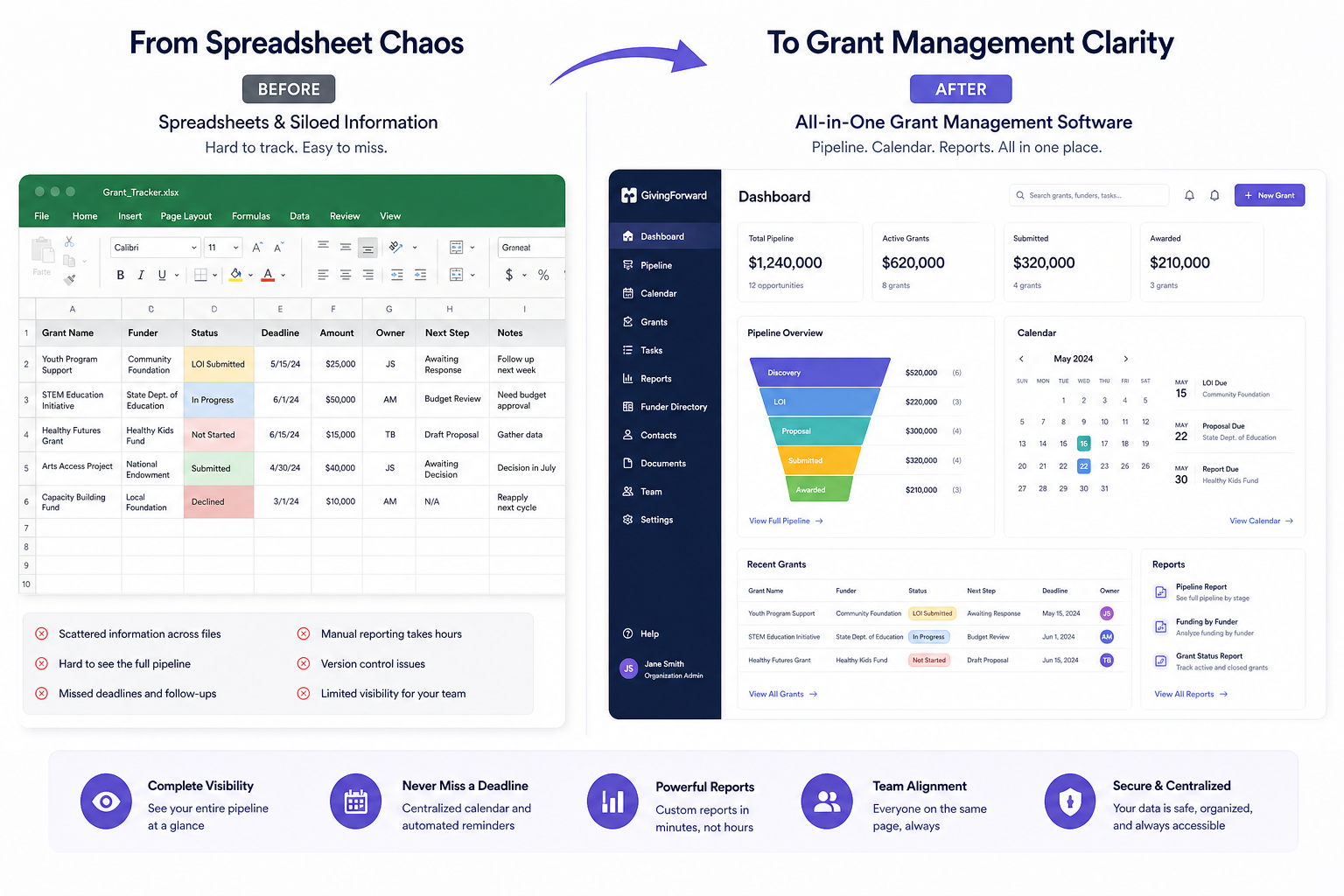
Avoid adding custom statuses. If the spreadsheet needs a legend nobody remembers, it is too complex, and the dropdown on the Lists tab is what stops "Submitted," "submitted" and "Sent" from turning into three separate statuses. Teams that want to see these stages as columns rather than rows can move to a visual grant pipeline.
Deadline Fields
Track every date that can stop a submission, not only the funder's due date:
- LOI deadline.
- Application deadline.
- Internal draft date.
- Budget review date.
- Submission confirmation date.
- Report due dates (on the Reports tab).
- Renewal date.
For the full deadline workflow, use the grant calendar guide.
Spreadsheet Rules
A grant tracker stays usable when a few rules hold for everyone who edits it:
- One row per opportunity or award.
- One owner per active grant, and no blank owner while a grant is active.
- Dates stored as real dates in one format.
- Statuses, owners and report types chosen from dropdowns.
- No merged cells, and no color coding without a written meaning.
- Document links stored in one column.
- Archived grants filtered out of the active view, not deleted.
- One named person maintains the structure, formulas and dropdown lists.
Assign areas, not just rows. When two people edit the same cell at the same time, Microsoft says "the last change that is saved ... is the one that 'wins,'" and its advice is to "assign areas or sheets to each person" (Microsoft Support, September 2026). Do not rely on sheet protection to keep grant data private either: Microsoft states that "Worksheet level protection is not intended as a security feature" (Microsoft Support, September 2026).
Review the sheet weekly: sort by the nearest deadline, fill blank owners, update next actions, check reports due soon and archive dead opportunities. That meeting is what turns the template from a list into a management tool.
Example Filled Row
Illustrative figures, not data from a real organization.
The Grant ID ties this row to every report row for the same grant on the Reports tab.
The Two Limits That Justify Moving Off a Spreadsheet
Two limits justify moving a grant tracker off a spreadsheet: the file cannot remind anyone on its own schedule, and its record of who changed what is partial. One commenter named exactly these two: "it can't nag anyone (the reminder shows up when someone opens the file, and that's usually the person who already forgot), and it keeps no record of who changed what" (Reddit thread 1vydvxu, read September 2026).
Limit 1: Reminders Depend on Someone Opening the File
A Due Soon flag only helps the person looking at it. Google's built-in notifications for Sheets fire when "Any changes are made" or a form is submitted, and Google points to Apps Script for more specific rules (Google Docs Editors Help, September 2026). Date-based email reminders usually need a second tool: Microsoft Lists, for example, can build a flow that sends "a personal email alert a predetermined number of days in advance of a date" (Microsoft Support, September 2026).
Limit 2: The Change Record Is Partial
Cloud Excel keeps some history, with limits. Show Changes lets you "see details of who changed what, where, and when," but only "for up to 60 days," and it does not show formatting changes, PivotTable operations or filtering (Microsoft Support, September 2026). Federal award records, by contrast, must be kept "for three years from the date of submission of their final financial report" (2 CFR 200.334, eCFR, September 2026), so a two-month change history does not cover the life of the records.
There is a softer sign as well. One commenter reported "about 400 versions of a grant tracker" at one organization, explaining that "Every new hire or person in a new position ends up making one" (Reddit thread 1qx3lpf, read September 2026). When the tracker is rebuilt each time someone new arrives, nobody treats it as the system of record.
Move to grant management software for nonprofits when several people update the tracker, deadlines need reminders that reach people who never open the file, award reporting is tracked somewhere else, or leadership keeps asking for the same summary by hand. The statuses from Watch to Closed are the stages of the grant lifecycle, and managing the grant lifecycle in practice walks through them.
Moving the Tracker Into Software
A clean tracker doubles as the import file for whatever comes next. GrantCue is one destination: every plan, including Free, has simple email reminders and an ICS calendar feed for deadlines; full CSV import and export start on Essentials at $49 a month; and Slack, Microsoft Teams and Google Calendar integrations plus budget versus actuals start on Team at $109 a month (GrantCue pricing page, October 2026). The features page shows the pipeline and reminder tools.
FAQ
Can I track grants in Excel instead of grant software?
Yes, for a small pipeline with one or two editors. Use one row per grant, real date columns, a dropdown list for status and a separate Reports tab, and save the file to OneDrive or SharePoint so version history works. Move to software when several people edit at the same time or reminders have to reach people who never open the file.
What is the most important column in a grant tracker?
Deadline and owner are the most important operational fields. A deadline with no owner drifts, and an owner with no deadline has nothing to act on. After those two, the Next Action column does the most work, because it turns the tracker from a list of grants into a list of things someone has to do this week.
Should awarded grants stay in the tracker?
Yes. Awarded grants should stay visible until every report is submitted, spending is reconciled and closeout is complete. Move them to the Reporting status and keep their report dates on the Reports tab. For federal awards, records are kept for three years from the date the final financial report is submitted (2 CFR 200.334, eCFR, September 2026).
Why do reports get their own tab in a grant tracker?
A single Report Due column on the main tab holds only one date, while an award can carry several interim reports and a final one. Give reports their own tab with one row per report: grant ID, report type, period covered, due date, owner and submitted date. The days-to-report formula on the main tab then pulls the next unsubmitted due date for each grant.
Next Step: Build the Tracker Tab Today, Add Reports Next
Build the Tracker and Lists tabs first, enter your active grants and add the Due Soon formula. Then enter every report from each award letter on the Reports tab and add the days-to-report and award-versus-spent formulas. When reminders or the change history start to fail you, the same clean columns become the import file for a grant tool, so nothing has to be retyped.