Grant Tracking Template for Google Sheets
A grant tracking template for Google Sheets with a grants tab, a deadlines tab, formula flags and a summary, plus shared editing rules, reminder options and Google's documented limits.

In this article (9)
- Quick Answer: What Should a Grant Tracking Template for Google Sheets Include?
- Tab Design for a Grant Tracking Template in Google Sheets
- Columns and Formulas on the Grants and Deadlines Tabs
- Shared Editing: Who Changes What
- Reminder Options in Google Sheets
- Version History and Cell Edit History in Google Sheets
- Nonprofit Grant Tracking in Google Workspace: Costs and Limits
- FAQ
- Set Up the Two Tabs, Then Choose a Reminder Route
A grant tracking template for Google Sheets is a shared workbook that lists each grant once and each deadline once, with formulas that flag what is due and a summary tab that counts what is open, overdue and awarded. The free download is an Excel file meant to be opened in Sheets, and Google's product page invites users to "Edit Microsoft Excel spreadsheets in Sheets" (Google Sheets product page, September 2026).
Build it knowing one limit up front. The notification settings Google documents for Sheets fire when the file changes, not when a due date arrives (Google Docs Editors Help, Manage your notifications, September 2026), so the template makes dates visible with formulas and leaves the emailing to whichever route your account supports.
Quick Answer: What Should a Grant Tracking Template for Google Sheets Include?
A grant tracking template for Google Sheets needs one tab listing each grant, one listing each dated deliverable, formulas that flag overdue and upcoming dates, a summary and a change log. Sheets notifications fire on edits, form submissions and cell changes, not dates, so date reminders need Apps Script or a separate tool (Google Docs Editors Help, September 2026).
Free download: Grant tracking workbook (Google Sheets-compatible) as Excel .xlsx. No email address required.
Tab Design for a Grant Tracking Template in Google Sheets
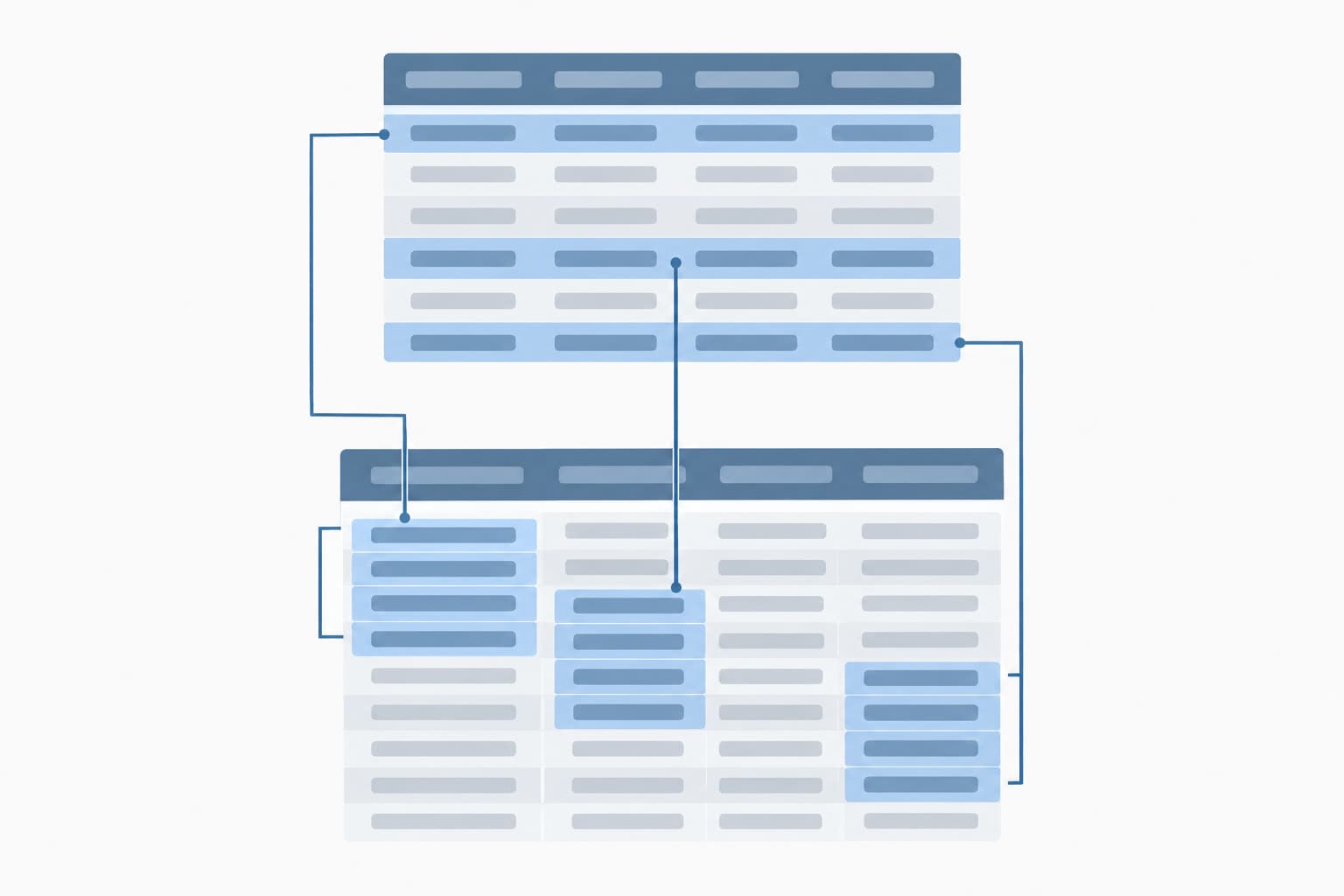
The template separates grants from deadlines: the Grants tab holds one row per grant, and the Deadlines tab holds one row per dated deliverable, joined by a Grant ID. A grant with an application, two interim reports and a final report takes one row on Grants and four on Deadlines.
That split is the whole design. A single row cannot hold a grant's schedule, because one column per report runs out, and report dates spread across columns never sort into one list of what is due next. On the Deadlines tab, every funder due date sits in one column, so sorting or filtering that column gives the team its calendar.
Spending stays off every tab. Actual costs by budget line need a ledger with one row per transaction, the layout a transaction ledger for grant spending uses, and this workbook carries only the amounts requested and awarded. For everything on one sheet, the single-tab grant tracking template guide lists the columns.
Size is not the constraint. Google Sheets allows "Up to 10 million cells or 18,278 columns (column ZZZ)," and "The limits are the same for Excel and CSV imports" (Google Drive Help, Files you can store in Google Drive, September 2026). One conversion rule applies to long text: "any cell with more than 50,000 characters will be removed in Sheets" (Google Drive Help, September 2026). Keep long award terms in the grant's folder and link to them.
Columns and Formulas on the Grants and Deadlines Tabs
Each tab carries typed columns you fill in and a few formula columns you never type in, and the formula cells are shaded so nobody mistakes one for an input.
The warning window lives in one cell on the Lists tab, not inside the Flag formula. That follows ICAEW's principle 14, "Avoid using fixed values within formulas," which tells spreadsheet builders to "Place any fixed values into separate cells and reference them within a formula" (ICAEW, 20 principles for good spreadsheet practice, 2024 edition). Change the window once and every flag follows.
Cancelled is a status for a reason. Marking a deliverable cancelled keeps its row and its history, where deleting the row would erase it, and the Days and Flag formulas ignore it. The Summary counts nothing by hand: every figure on it comes from the Grants and Deadlines tabs, so it is right whenever they are. Two sample grants, SAMPLE-01 and SAMPLE-02, show the formulas working; delete their rows on both tabs before you enter your own.
Shared Editing: Who Changes What
A shared Sheets tracker stays clean when each person has a defined patch: program staff update their own Deadlines rows, one person owns the Grants tab and the Lists tab, and nobody types in a shaded cell.
Sheet protection helps keep people out of shaded cells, within limits Google spells out. Sheet protection "shouldn't be used as a security measure. People can print, copy, paste, and import and export copies of a protected spreadsheet," and a protected sheet cannot "Protect data with a password" (Google Docs Editors Help, Protect, hide & edit sheets, September 2026). Protect the formula columns, the Summary and the Lists tab against accidental overwrites, and treat anything in the file as readable by everyone it is shared with.
Change emails are personal. In Sheets' notification settings, "You can only set up notifications for yourself" (Google Docs Editors Help, Manage your notifications, September 2026), so a finance lead who wants to hear about every edit turns that on from their own account.
Ownership matters more than settings. In a thread about building a nonprofit tracker, one reply warned that "every single person after you will just make their own. Or break yours." (Reddit thread 1qx3lpf, read September 2026). Write the patch rules on the Read Me tab, name the owner of each tab there, and walk each new staff member through them before giving edit access.

Reminder Options in Google Sheets
Google documents three ways to get email out of a Sheets tracker. The first two fire when something changes, and for anything more specific Google points to Apps Script: "If you want to set more specific notification rules, for example when someone modifies a certain range of cells, use Apps Script" (Google Docs Editors Help, Manage your notifications, September 2026).
Sources: Google Docs Editors Help, Manage your notifications and Use conditional notifications (September 2026); Google Workspace Updates blog (September 25, 2025); Google for Developers, Quotas for Google Services (September 2026).
Conditional notifications suit status changes. They let you "create rules to send email notifications when a cell changes," but they "are only available to certain work or school accounts" (Google Docs Editors Help, Use conditional notifications, September 2026). Google lists them for Workspace Business Standard and Plus, Enterprise Starter, Standard and Plus, Education Plus and Enterprise Essentials, and on September 25, 2025 raised the cap "from 10 to 20 rules per spreadsheet" (Google Workspace Updates blog, September 25, 2025). One rule can email the finance lead when a cell in the Status column changes.
In Sheets itself, dates take a script. A script that checks the Deadlines tab and emails each owner whose funder due date falls inside the warning window is the Sheets version of a reminder, and it runs within quotas of 100 email recipients a day for consumer accounts and 1,500 for Workspace, which Google says "are subject to elimination, reduction, or change at any time, without notice" (Google for Developers, Quotas for Google Services, September 2026). Someone has to write it and keep it working.
Without a script, the Flag column does the reminding, but only for whoever opens the file. Copy funder due dates into a shared calendar as well, so the dates reach people who never open the sheet; the grant pipeline and dashboard guide shows how a calendar works beside the pipeline.
Version History and Cell Edit History in Google Sheets
Sooner or later someone asks who changed a grant's stage, dates or amounts, and when. Google Sheets keeps two kinds of history, version history for the whole file and edit history for one cell, and both have documented gaps that the template's Change Log tab covers.
Version history needs edit rights and has a naming cap. "To browse earlier versions of a file, you need permission to edit that file," a spreadsheet can carry up to 15 named versions, and "The revisions for your file may occasionally be merged" (Google Docs Editors Help, Find what's changed in a file, September 2026). Save names for milestones, such as the day each report goes out.
Cell history shows who changed a cell through "Show edit history," but "Some changes might not show up in the edit history," including "Added or deleted rows and columns," "Changes to the cell's format" and "Changes made by formulas" (Google Docs Editors Help, Find what's changed in a file, September 2026).
The Change Log tab has seven columns: date, changed by, Grant ID, field, old value, new value and reason. Add a row whenever a stage, a funder due date or an award amount changes, and the reason column will explain an extension or a revised award long after the email that approved it is buried.

Nonprofit Grant Tracking in Google Workspace: Costs and Limits
For an eligible nonprofit, Sheets itself costs nothing: Google Workspace for Nonprofits is "$0 USD / user / month" with "100 TB shared across all users" (Google for Nonprofits, Google Workspace page, September 2026). The catch for a grant tracker is that conditional notifications appear only on the editions Google lists for them, and the free nonprofit edition is not one of them.
Prices from Google for Nonprofits, Google Workspace page (September 2026); editions from the Google Workspace Updates blog (September 25, 2025).
Google Workspace for Nonprofits and the nonprofit discounts on Business Standard and Business Plus "have a maximum limit of 2,000 users" (Google for Nonprofits, Google Workspace page, September 2026). Asked whether "a nonprofit school, healthcare organization or government entity" is eligible, Google answers "No" (Google for Nonprofits FAQ, September 2026), so universities, hospitals and public agencies should not plan around these prices.
A Sheets tracker handles an award with many report dates well, through the Deadlines tab. It stops coping at date reminders, which need a script someone maintains, and at history, which has gaps a person fills by hand.
GrantCue sends the date reminders a Sheets tracker needs a script for. Every plan, Free included, has deadline tracking, reminders, a calendar feed with Google Calendar sync, Slack and Microsoft Teams alerts, and an activity log that fills the history gap (grantcue.com pricing, October 2026). Its import and migration features include CSV import with field mapping and a preview for moving a spreadsheet in, and CSV and Excel import and export are on every plan too (grantcue.com pricing, October 2026).
FAQ
Is There a Free Grant Tracking Template for Google Sheets?
Google's own Sheets page names "pre-built tables for event planning, project management, and inventory management," not grant tracking, and invites users to "Edit Microsoft Excel spreadsheets in Sheets" (Google Sheets product page, September 2026), so an Excel template can be opened there too. Smartsheet's grant templates page offers downloads in several formats, Google Sheets among them (Smartsheet, June 26, 2024).
Can Google Sheets Send Grant Deadline Reminders?
Not from a date on its own. Sheets notification settings email only the person who set them, when the file changes or a form is submitted, and conditional notifications fire when a cell changes, on certain work or school accounts (Google Docs Editors Help, September 2026). A date-based email takes Apps Script, which allows 100 recipients a day on consumer accounts and 1,500 on Workspace (Google for Developers, September 2026).
Does Google Sheets Keep a History of Changes?
Partly. Version history covers the whole file for anyone with edit permission, with up to 15 named versions per spreadsheet, and "Show edit history" shows who changed a cell (Google Docs Editors Help, September 2026). Added or deleted rows, format changes and changes made by formulas may not appear in cell history, so keep a change log tab for stage, date and amount changes.
Is Google Sheets Enough for Nonprofit Grant Tracking?
For a small team it can be. Google Workspace for Nonprofits costs "$0 USD / user / month" for eligible organizations (Google for Nonprofits, September 2026), and a grants tab plus a deadlines tab handles an award with many report dates. Sheets falls short on date reminders, which need a script, and on history, which has gaps a manual change log has to fill.
Can You Track Instrumentl Grants in Google Sheets?
Yes, by file. Instrumentl says its exports are ".csv files, allowing you to easily save your data as an Excel spreadsheet (.xlsx) or upload it to Google Sheets" (Instrumentl Help Center, September 2026), so a grant found there can be pasted onto a Grants tab under its own ID, with its dates entered on the Deadlines tab. Moving the other way is slower: Instrumentl's spreadsheet imports "are done manually by one of our Grant Import team members and are not automatic" (Instrumentl Help Center, September 2026).
How Do Proposal Drafts Connect to a Google Sheets Grant Tracker?
Through a link on the deliverable's row. A proposal lives in a document, not in the tracker, so the Deadlines tab gives each application or report a Draft link column that points to the current draft, whether it sits in Google Docs or Word, and everyone opens the same version. For the proposal itself, the nonprofit grant proposal template is one free starting point, and the guide to writing a grant proposal covers each section in order.
Set Up the Two Tabs, Then Choose a Reminder Route
Open the download in Google Sheets, confirm that the formula columns show results and the restricted columns offer their lists, and delete the two sample grants. Enter each active grant once on the Grants tab and every dated deliverable on the Deadlines tab, with an owner on each row. Set the warning window on the Lists tab, protect the shaded formula columns, and name a version once the data is in.
Then pick the reminder route your account supports: conditional notifications for status changes on an edition Google lists for them, an Apps Script for dates, or a separate tool that sends reminders by itself.