Word vs Google Docs for Grant Proposals: Which to Write In
Word vs Google Docs for writing grant proposals: PDF and portal formatting, co-editing, comments, version history, offline work, cost, and a pick by situation.
In this article (10)
- Quick Answer: Should You Write a Grant Proposal in Word or Google Docs?
- Word vs Google Docs for Grant Proposals: The Comparison
- Formatting Fidelity When the Funder Wants a PDF
- Pasting a Proposal Into an Online Grant Portal
- Co-Editing, Comments and Review Rounds
- Version History and Recovering a Lost Draft
- Offline Work, Cost and Account Type
- Which to Write In: A Pick by Situation
- FAQ
- Decide the Final Format First, Then Choose the Editor
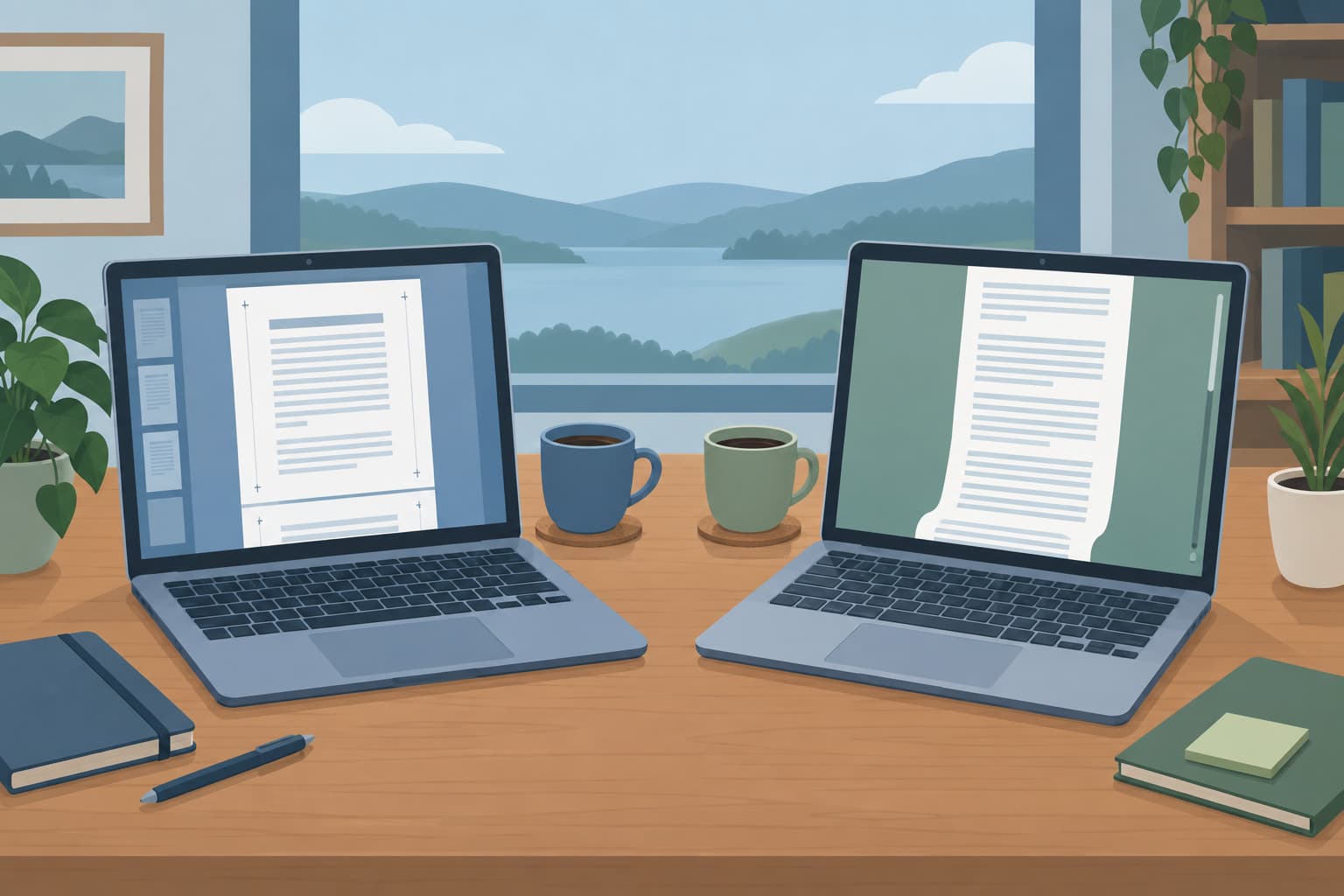
Word vs Google Docs for grant proposals is less a question of which editor is better than of where the finished proposal has to go. A funder that wants a page-limited PDF, a portal that takes plain text in character-limited boxes, and a team of four reviewers in three organizations each favor a different setup.
Either editor can export a PDF or a Word file. Word keeps layout tools such as section breaks, captions and cover pages in its desktop app only (Microsoft Support, October 2026), while a Google Doc can be edited on up to 100 open tabs or devices at once (Google Docs Editors Help, October 2026). Every product fact here is dated October 2026, because both editors change often.
Quick Answer: Should You Write a Grant Proposal in Word or Google Docs?
Write in Google Docs when several people in different organizations edit the draft at once and the funder takes portal text or a PDF. Write in Word when the funder expects a precisely laid-out document, your team already shares files through OneDrive or SharePoint, or someone must work offline. Either editor exports both PDF and Word files.
Word vs Google Docs for Grant Proposals: The Comparison
The two editors match on the basics a proposal needs, including PDF export, comments, tracked edits and word counts, and differ on collaboration setup, layout depth, offline work and account requirements. The table compares them on the points that decide a proposal workflow.
Two rows in that table settle many choices. If the team cannot share one Microsoft 365 environment, Google Docs is the easier co-editing space. If the funder's layout rules are strict, Word's desktop app carries layout tools, such as section breaks, captions and cover pages, that Word for the web lacks (Microsoft Support, October 2026).
The editors also convert between each other. Google states that "Any tracked changes in Microsoft Office become suggestions in Google Docs editors" and "Any suggestions in Google Docs editors become tracked changes in Microsoft Office" (Google Docs Editors Help, October 2026), so a draft can move between them during review.
Formatting Fidelity When the Funder Wants a PDF
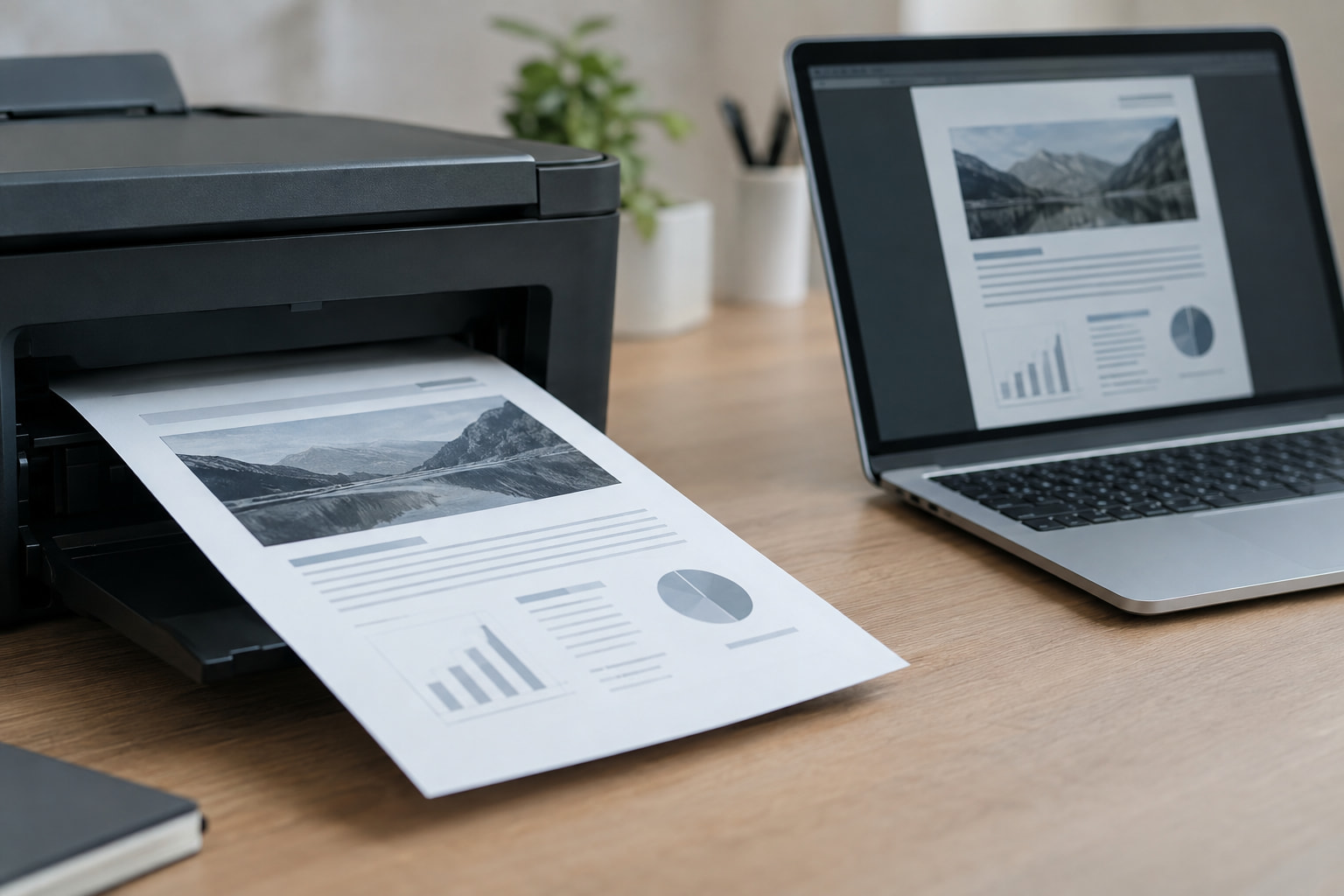
When a funder wants a PDF, the editor matters less than the export check. Both editors produce PDFs, and the risks sit in features that do not survive conversion, in markup that should not appear, and in layout modes that hide page elements.
Word's PDF export has several options worth setting. They include "Document showing markup" to include tracked changes, or "Document" to leave them out (Microsoft Support, October 2026), and a proposal should go out as "Document." Word also offers "Bitmap text when fonts may not be embedded," because if a font cannot be embedded "the PDF reader might substitute another font" (Microsoft Support, October 2026). The "ISO 19005-1 compliant (PDF/A)" option "helps to insure that a document will look the same when it's opened later on a different computer" (Microsoft Support, October 2026).
Google Docs exports through File, Download, and for a large document Google suggests File, Print, then "Save as PDF" in Chrome (Google Docs Editors Help, October 2026). Check the page setup first. In pageless format "you won't be able to add certain features, such as columns, page numbers, headers and footers" (Google Docs Editors Help, October 2026), so a page-limited proposal belongs in Pages format.
Conversion between editors has known limits. When an Office file is edited in Google Docs, "Embedded charts and videos in Word and PowerPoint files will be converted to images" and "SmartArt images will be converted to Google Drawings" (Google Docs Editors Help, October 2026). A logic model built in SmartArt becomes a Google Drawing once the file is edited in Docs.
A final check catches what the editor misses: open the exported PDF, count the pages against the limit, confirm headers and page numbers appear, and look at every table. Microsoft notes that "Simply sharing something as a PDF is not sufficient to guarantee the recipient can't edit the file" (Microsoft Support, October 2026), so the PDF is a layout format, not a lock.
Pasting a Proposal Into an Online Grant Portal
When the funder uses an online portal, both editors work as drafting tools, and the job is to move clean text into character-limited boxes. Plain-text pasting and accurate counts matter more than any layout feature.
Each editor can strip formatting on the way in or out. Google Docs' shortcut for "Paste without formatting" is Ctrl + Shift + v on a PC (Google Docs Editors Help, October 2026). In Word, "By default, Word preserves the original formatting when you paste content," and the paste options are "Keep Source Formatting," "Merge Formatting" and "Keep Text Only" (Microsoft Support, October 2026). When copying text from a portal back into a draft, Keep Text Only avoids importing the portal's styles.
Counts need care when a portal limits characters. Google Docs' word count shows pages, words, characters and "Characters without spaces," and "Unless you select a section of the document, word count applies to everything except headers, footers, and footnotes" (Google Docs Editors Help, October 2026). Word counts "pages, paragraphs, lines, and characters," and selecting text shows the count for that selection (Microsoft Support, October 2026). Select one section at a time and compare the count with the portal's limit for that box.
A practical setup for portal applications is one master document with a heading for each portal question, its limit written under the heading, and the answer under that. Paste each answer as plain text, then read it in the portal's preview, since the portal's own counter decides what fits. Reusable text can live in a separate file; one commenter described keeping standard organizational text, such as the mission and history, in one document to paste from (Reddit thread 1ubd86x, read September 2026).
A ready-made nonprofit grant proposal template comes as a Word file, and the annotated sample proposal shows a complete section order.
Co-Editing, Comments and Review Rounds
Google Docs makes multi-organization co-editing simpler, because a Doc is shared by email address with a viewer, commenter or editor role. Word co-editing is built around files in OneDrive or SharePoint and depends on which version of Word each person runs.
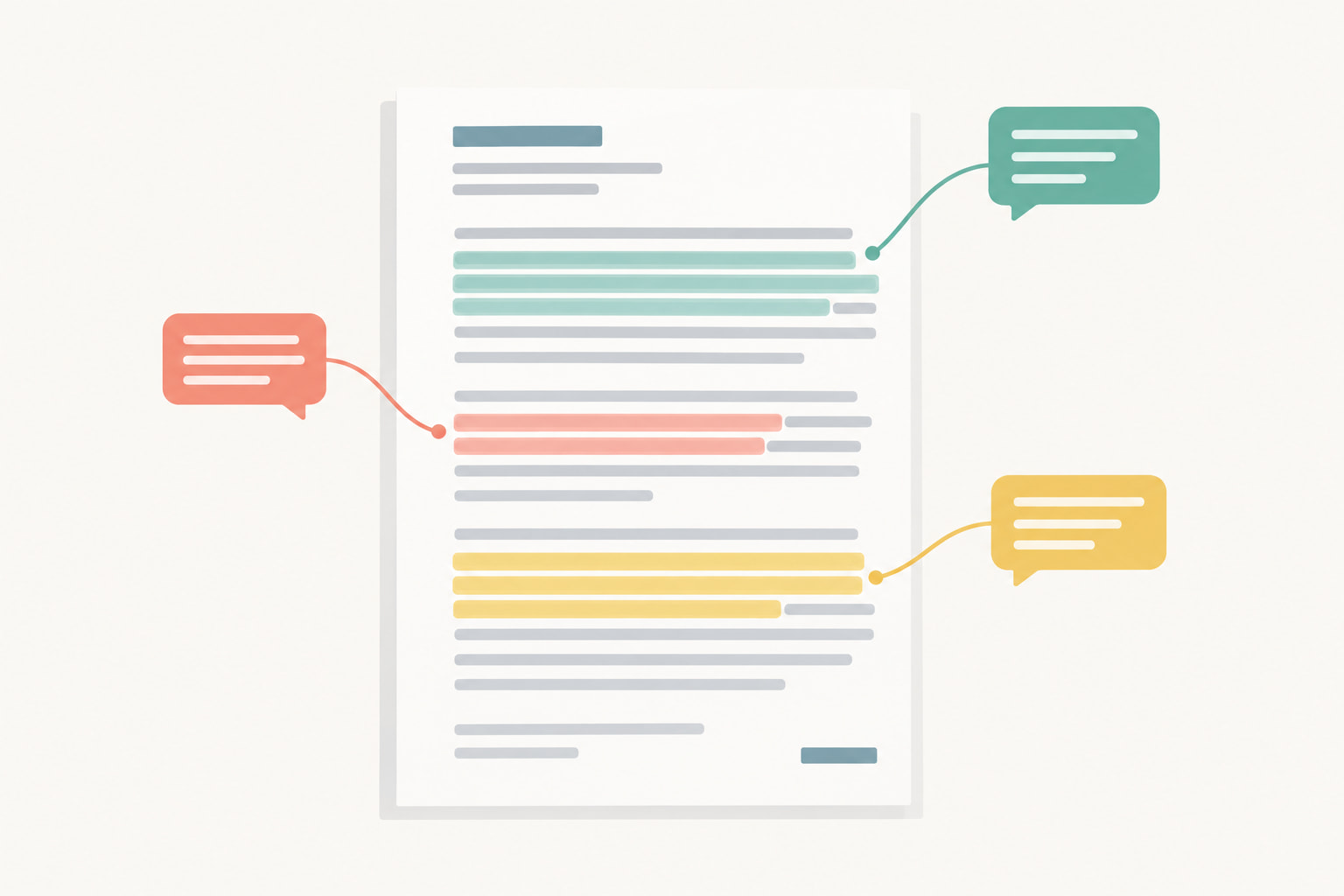
Google's sharing roles are Viewer, Commenter, Editor and Owner, people on work or school accounts might not be able to share outside their organization, and viewers and commenters can download a file "by default" unless the owner changes it (Google Docs Editors Help, October 2026). A file can be shared "with up to 600 individual email addresses" (Google Docs Editors Help, October 2026). Suggesting mode lets a reviewer "suggest changes to a document without changing the original text," and the owner accepts or rejects each suggestion or all of them at once (Google Docs Editors Help, October 2026). Long review rounds can hit a ceiling: Google warns "You've reached the document limit for comments" and asks you to copy the document without resolved comments (Google Docs Editors Help, October 2026).
Word's co-authoring depends on version and subscription. "If you're using an older version of Word, or if you're not a Microsoft 365 subscriber, you can still edit the document at the same time others are working in it, but you won't have real-time collaboration," and others' changes appear only when you save (Microsoft Support, October 2026). To share from the desktop app, a file not already in OneDrive must be uploaded there, and Microsoft says "For the best experience, work together in Word for the web" (Microsoft Support, October 2026). A shared document can be set to "Open in review mode only," which "is currently supported only in Word for Web" (Microsoft Support, October 2026).
For a proposal with outside partners, give partners comment access or ask them to work in suggesting mode, keep one owner who accepts edits, and close each review round by resolving comments.
Version History and Recovering a Lost Draft
Both editors keep version history, but Word keeps it only for files stored in OneDrive or SharePoint, while Google Docs keeps it for Docs files in Drive. Name a version at each milestone in either editor, so a cut paragraph can be recovered after the deadline rush.
Google Docs shows version history to editors only: "To browse earlier versions of a file, you need permission to edit that file" (Google Docs Editors Help, October 2026). You can restore an earlier version or copy it, and "You can add up to 40 named versions per document" (Google Docs Editors Help, October 2026). Google also notes that "The revisions for your file may occasionally be merged," which is why named versions help. Seeing who changed a specific passage ("Show editors") is limited to certain Workspace editions (Google Docs Editors Help, October 2026).
Word's version history has a storage condition: "Version history in Microsoft 365 only works for files stored in OneDrive or SharePoint in Microsoft 365" (Microsoft Support, October 2026). On a personal Microsoft account "you can retrieve the last 25 versions," and on a work or school account the number depends on the library configuration (Microsoft Support, October 2026). AutoSave "saves your file automatically, every few seconds" for Microsoft 365 subscribers on OneDrive or SharePoint, and it is disabled for files saved "to a local path like C:\" or in older formats such as .doc (Microsoft Support, October 2026).
AutoSave changes one habit. With it on, "new versions are only added to the version history periodically (about every 10 minutes)," and Microsoft recommends "File > Save a Copy before you make any changes" when edits belong in a copy (Microsoft Support, October 2026). Use Save a Copy before cutting a proposal to a new funder's page limit.
Offline Work, Cost and Account Type
Word's desktop app is the stronger choice for offline drafting and comes with a paid subscription, while Google lists Workspace for Nonprofits at $0 per user per month for eligible organizations (Microsoft Support and Google for Nonprofits, October 2026). What your organization already pays for can settle the rest.
Google Docs works offline only after setup: you must turn on offline access while connected, "use the Google Chrome or Microsoft Edge browser," avoid private browsing and install the Docs Offline extension (Google Docs Editors Help, October 2026). It saves "the most recently opened documents," and other files must be marked available offline (Google Docs Editors Help, October 2026). On a work account, an administrator can disable it (Google Docs Editors Help, October 2026). Microsoft's comparison marks "Offline Viewing and Authoring" as a desktop feature that Word for the web lacks (Microsoft Support, October 2026).
Cost depends on the account. A free Microsoft account gives "only the free web versions of Word, Excel, and PowerPoint" with 5 GB of storage, while Personal, Family and Premium subscriptions include the desktop apps (Microsoft Support, October 2026). For eligible nonprofits, Microsoft lists Business Premium "at a 75% discount" (Microsoft Nonprofits, October 2026), and Google for Nonprofits lists Google Workspace for Nonprofits at "$0 USD / user / month" (Google for Nonprofits, October 2026).
Both vendors offer AI assistants, Gemini and Microsoft Copilot, and the data terms follow the account. Google says a work or school account's Gemini use "may be subject to different data handling terms" (Google, Gemini Apps Privacy Hub, updated July 15, 2026), while Microsoft says that for organizations using Microsoft Copilot, prompts and responses "aren't used to train foundation LLMs" (Microsoft Learn, updated August 18, 2026). One commenter wrote that "At the large research university level we are still warned to avoid uploading grants, even with our proprietary license" (Reddit thread 1ubd86x, read September 2026). The guide to free grant writing software covers AI drafting tools.
Which to Write In: A Pick by Situation
Pick the editor that matches the final format and the people who must touch the draft. The table gives a default for common proposal situations.
Defaults based on the product features dated October 2026; the funder's instructions on file format come first.
When situations conflict, the final format wins. A partner-heavy team that must deliver a strict PDF can draft and review in Google Docs, then move the near-final text into Word for layout, export and the page-count check, with suggestions carried across as tracked changes. Make that move once, near the end, and treat the Word file as the only master from then on, so no late edit lands in a copy nobody will submit.
The editor holds the words, and the rest of the proposal workflow needs a home too. GrantCue works beside either editor and keeps the work around the draft in one place: tasks, deadlines, notes and comments on every plan, AI writing tools for drafting and refining sections from Essentials, and a shared document library per opportunity from Team (grantcue.com, October 2026). The feature list covers each of these.
FAQ
Can You Write a Grant Proposal in Google Docs and Submit It as a Word File?
Yes. Google Docs files can be downloaded as .docx (Google Docs Editors Help, October 2026). Check the file in Word before submitting. Conversion has limits: when Office files are edited in Docs, Google converts embedded charts to images and SmartArt to Google Drawings, so build charts in the format you will submit. Confirm headers, page numbers and tables after conversion.
Does Google Docs Have Track Changes Like Word?
Google Docs uses suggesting mode in place of Track Changes. A reviewer's suggestions appear in color and the owner accepts or rejects them, one at a time or all at once (Google Docs Editors Help, October 2026). Google states that tracked changes in an Office file become suggestions in Docs, and suggestions become tracked changes when the file is converted back to Office.
How Do You Keep Formatting Clean When Pasting Into a Grant Portal?
Paste as plain text. In Google Docs the shortcut for paste without formatting is Ctrl + Shift + v on a PC, and Word offers a Keep Text Only paste option (Google and Microsoft help pages, October 2026). Then read each answer in the portal's preview and check it against the portal's own character counter, since that counter decides what the box accepts.
Is Microsoft Word Free for Nonprofits?
Word for the web is free with a Microsoft account, with 5 GB of cloud storage, but the desktop app comes with a paid subscription (Microsoft Support, October 2026). For eligible nonprofits, Microsoft lists Microsoft 365 Business Premium, which includes desktop Word, at a 75% discount (Microsoft Nonprofits, October 2026). Google Workspace for Nonprofits is listed at $0 per user per month (Google for Nonprofits, October 2026).
Can You Work on a Google Doc Offline?
Yes, after setup. Offline access must be turned on while you are connected, in Chrome or Edge with the Google Docs Offline extension and not in private browsing (Google Docs Editors Help, October 2026). Recently opened documents are saved automatically, and other files must be marked available offline. A work or school administrator can turn offline access off for the account.
How Many People Can Edit a Google Doc at the Same Time?
Google states that a Docs file "can only be edited on up to 100 open tabs or devices" at any one time, and that past that number only the owner and some users with edit permissions can edit (Google Docs Editors Help, October 2026). A single file can be shared with up to 600 individual email addresses (Google Docs Editors Help, October 2026). Separately, a document can reach a comment limit, after which Google asks you to copy it without resolved comments (Google Docs Editors Help, October 2026).
Decide the Final Format First, Then Choose the Editor
Read the funder's submission instructions before opening either editor. A required PDF with a page limit points to a paged layout and an export check, a portal points to plain-text answers with per-box counts, and a required Word upload points to a .docx check before submission.
Then match the editor to the people. Name one owner for the draft, set reviewers to suggest or comment, and name a version at each milestone. Before submitting, open the final file exactly as the funder will see it and check every page, count and table against the instructions.