Prepare grant proposals from template to final draft
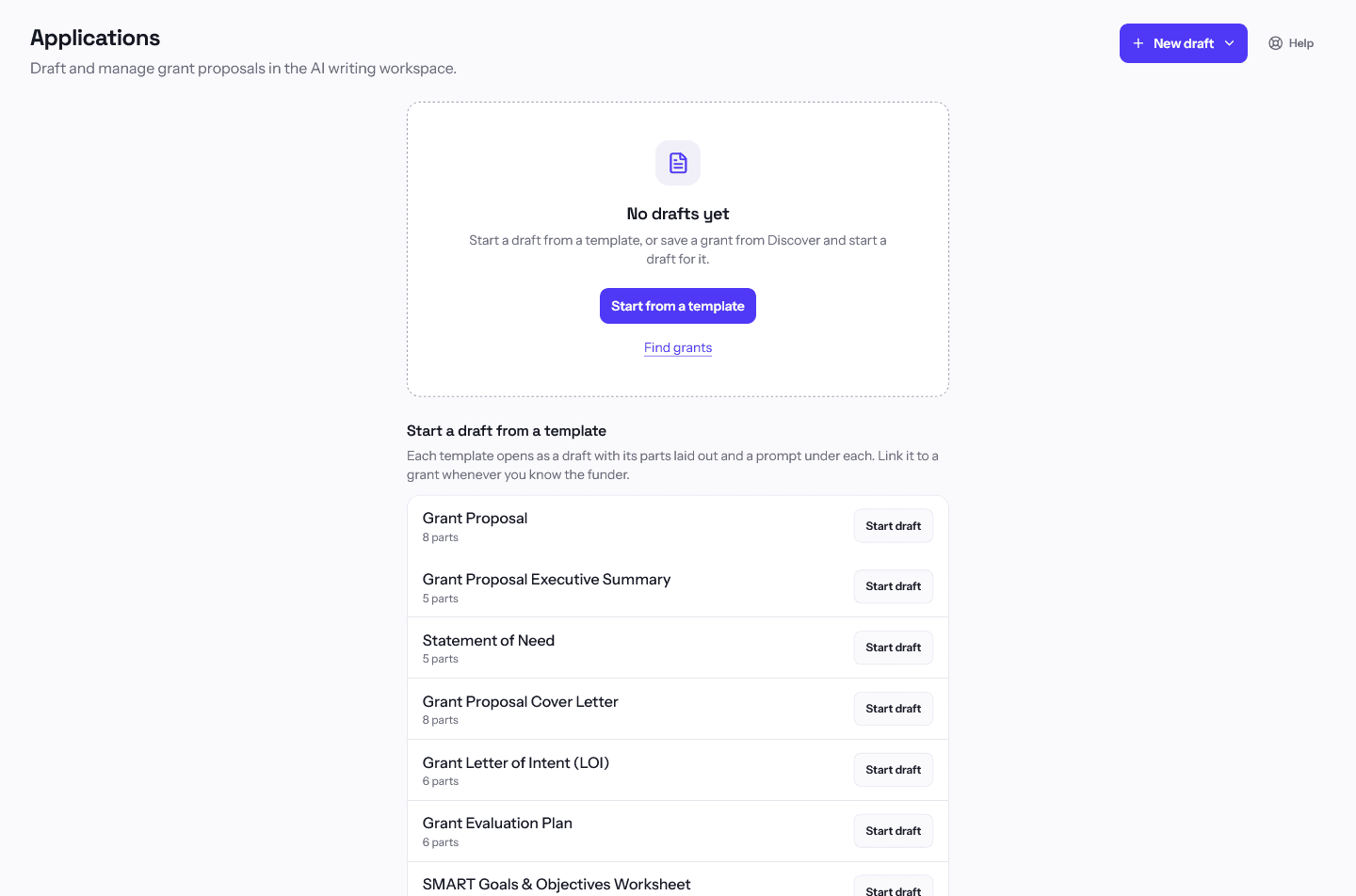
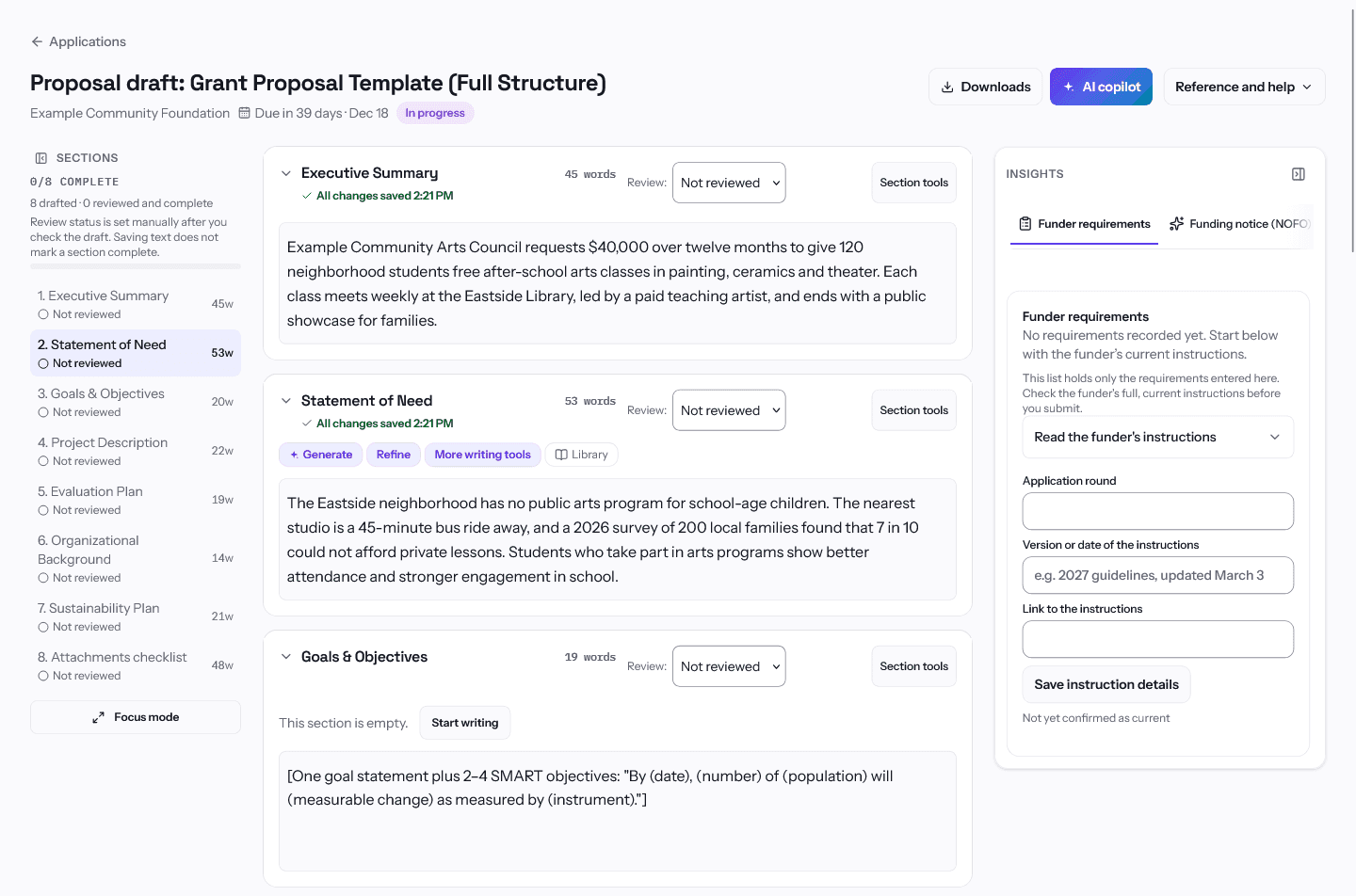
Start from one of seven free templates or from a saved grant, write section by section with your team, and check the draft against what the funder asked for. When it's ready, download it as Word or PDF and submit it through the funder's own portal.
Free to start, no card. After you sign up, a Grant Proposal draft opens in the writing workspace.
From first outline to the file you submit
- Approvals. Require sign-off, at one or more levels, before a grant moves to Submitted.
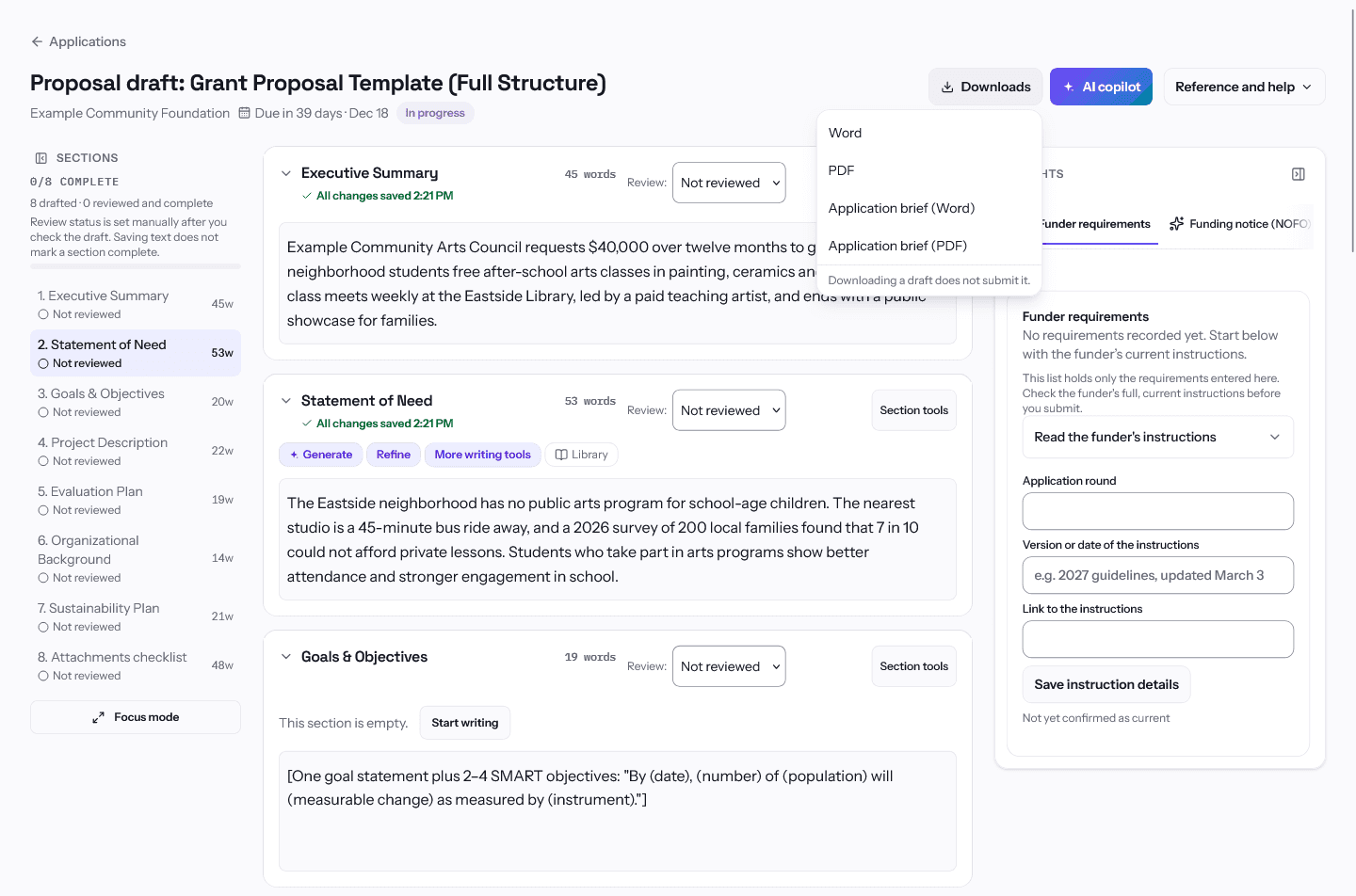
- Word and PDF downloads. Open sections save first, and a download stops if a save fails.
- Budget builder. Line items with a total, and an AI budget narrative on Essentials and up.
- Sample proposals. Four annotated examples in the help center, from a federal research narrative to a budget justification.
- Documents. Uploads checked against VirusTotal's malware records, or links to Google Drive and OneDrive.
- Comments. Comments and @mentions on each grant, so review notes stay with the work.
What GrantCue does not do
- GrantCue does not send your application. You submit it in the funder's portal or by its stated method, then record the submission so My grants and your reminders stay accurate.
- AI output is a draft. Check names, numbers and claims against the funder's instructions before you use it.
- "Check with AI" reports what your draft covers. It does not decide eligibility or whether the application meets the funder's submission rules.
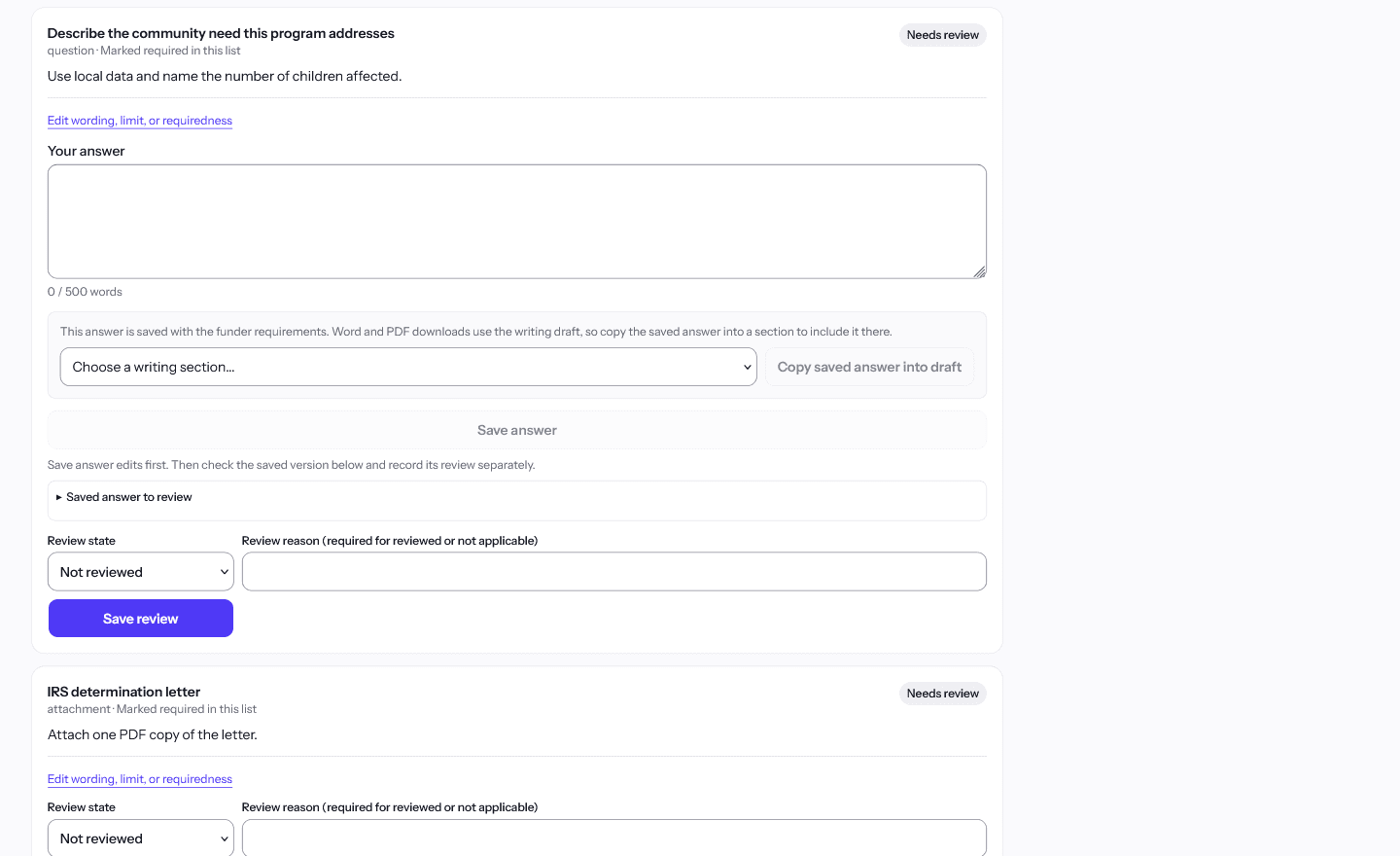
- A requirement marked Reviewed means someone on your team checked it against the instructions you recorded. It is not approval from the funder.
Who uses it
What each plan includes
The templates, the writing workspace, approvals and Word and PDF downloads are on every plan, including Free. AI writing tools start on Essentials.
Free to start, no card. Every new workspace gets the Team plan for 14 days, then the Free plan. See full pricing
How to start
- Create your account. Sign up free with Google, Microsoft or your email, no card. A Grant Proposal draft opens when you're in.
- Write each section. Replace each bracketed prompt with your own text. On paid plans, ask the AI for a first pass and edit it.
- Link the draft to a grant. When you know the funder, link the draft to a saved grant so its deadline and the funder's requirements come with it.
- Check it against the requirements. Work through the Funder requirements and the Compliance Tracker until each required item is covered.
- Download and submit. Download the draft as Word or PDF, submit it in the funder's portal, then record the submission in GrantCue.
Questions buyers ask
Does GrantCue submit my proposal to the funder?
No. Download the draft as Word or PDF and submit it in the funder's own portal or by its stated method. Then choose "Record external submission" with the method, date and confirmation reference, so My grants and your reminders stay accurate.
Will the AI write the whole proposal?
On Essentials and up, Generate drafts a section, and Refine, Expand and Condense rework what you have. What it writes is a draft: check names, numbers and claims against the funder's instructions, and edit it before you use it. Free has no AI writing tools.
Can GrantCue read the funder's instructions for me?
On Team and up, yes. Paste the text, give a link to a public page or PDF, or upload a PDF or Word file up to 15 MB, and GrantCue lists the questions, limits and attachments it finds in the funder's own words. Only the items you keep are saved. Pages behind a sign-in can't be read. On every plan you can paste up to 20 funder questions at once and track them by hand.
Can my team review a draft before it goes out?
Yes. Each section has a review status (Not reviewed, In review or Complete), and comments with @mentions sit on the grant. An approval rule can require one or more people to sign off before the grant moves to Submitted.
Can I use my past proposals?
Yes. On every plan you can copy sections from an earlier draft into a new one. On Essentials and up, import a Word or PDF proposal (up to 3 MB and 60 pages) into the Content library: GrantCue splits it into reusable answers in your own wording, and you approve each one.
What is on the Free plan?
The seven templates, the writing workspace with autosave and version history, approvals, Word and PDF downloads, a Community data preview, and 3 AI summaries of funding notices a month. AI writing tools start on Essentials.
Read more in the help center
Start your next proposal from a template
Free to start, no card. Every new workspace gets 14 days of Team, so you can try the AI writing tools and the reading of the funder's instructions before you choose a plan.