Manage grants
Approvals: require sign-off on stage changes
Plans: Every plan, including Free. Only organization admins set approval rules.
An approval rule makes a grant wait for sign-off before it moves between two stages, for example before it is marked submitted. Admins set the rules, and approvers review each request from one list.
In the app: Approvals, and Settings > Workflow
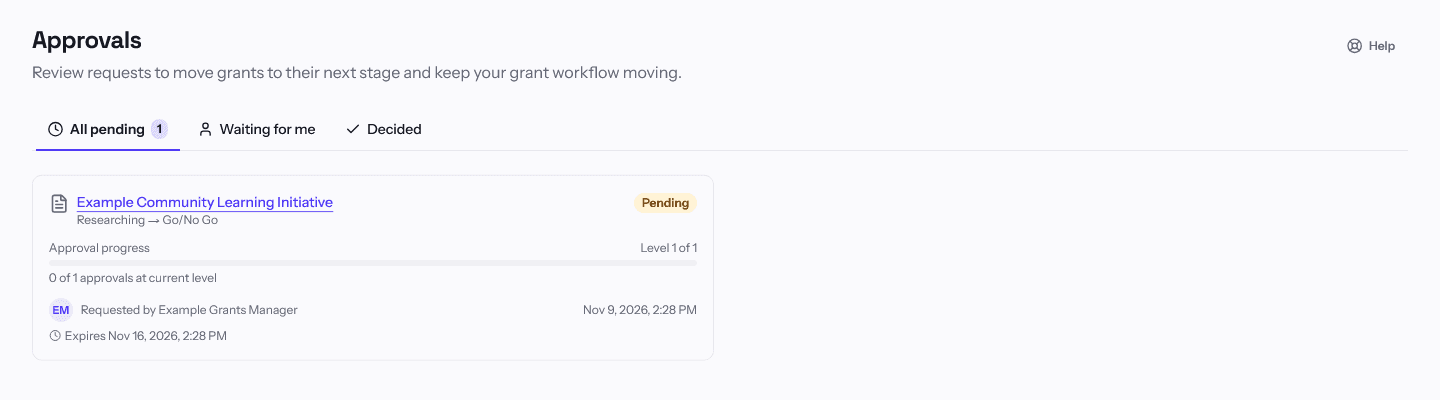
An approval rule makes a grant wait for sign-off before it moves from one stage to another. The Approvals page lists the requests that rules create. Open Approvals from More in the menu, or search for it with Ctrl+K (Cmd+K on a Mac).
Set a rule (admins)
- Open Settings > Workflow. Under Approval rules, choose Add approval rule. Only admins see the rule controls.
- Enter a Name. A Description is optional.
- Under Require approval moving from, choose the From stage and the To stage.
- For each approval level, choose who approves: Admin(s), Contributor(s) or Specific users, and how many approvals are required. Choose Add level for a second level.
- Optionally tick Require all levels to approve, Allow the requester to approve their own transition, or Auto-approve when an admin makes the change.
- Choose Create rule.
What the person moving the grant sees
When someone moves a grant between two stages that have a rule, the grant stays where it is. GrantCue says the move requires approval and offers a box for Request notes (optional). Choose Submit request to send it. On the grant's own page the button reads Request approval for the target stage. When the rule has Auto-approve ticked and an admin makes the move, it goes through without a request. For a move to Submitted, GrantCue saves the submission report you recorded and sends the move for approval.
Review requests
Approvals has three tabs: Pending, Waiting for me and Completed. A badge shows how many requests are waiting for your review. Each card shows the grant, the stages it would move between, who asked and when, the approval progress (for example Level 1 of 2) and an expiry time when the request has one.
- Open Waiting for me and choose Review request on a card. Only people named as approvers at the current level see this button.
- Review the grant, its documents and its funder requirements using the links in the dialog.
- Choose Approve, with optional comments, or Reject. A rejection needs a reason.
Approving moves the request to the next level, or finishes it. Rejecting cancels the stage change and the grant stays in its current stage. If the request was for a move to Submitted, rejecting it, or letting it expire, withdraws the submission report saved with it. The history keeps the report and the reason.
Expired requests
A request past its expiry shows as Expired. It can no longer be reviewed, and it is listed under Expired requests on the Pending tab. A new request can be raised for the same grant.
Related articles
Questions about a feature or a plan?Contact us