Manage grants
Plan how a project will be paid for
Plans: Every plan, including Free.
A funding plan puts one project's budget next to every grant, pledge and other source that could pay for it, so you can see what is secured and what is still missing before you apply.
In the app: Funding plans
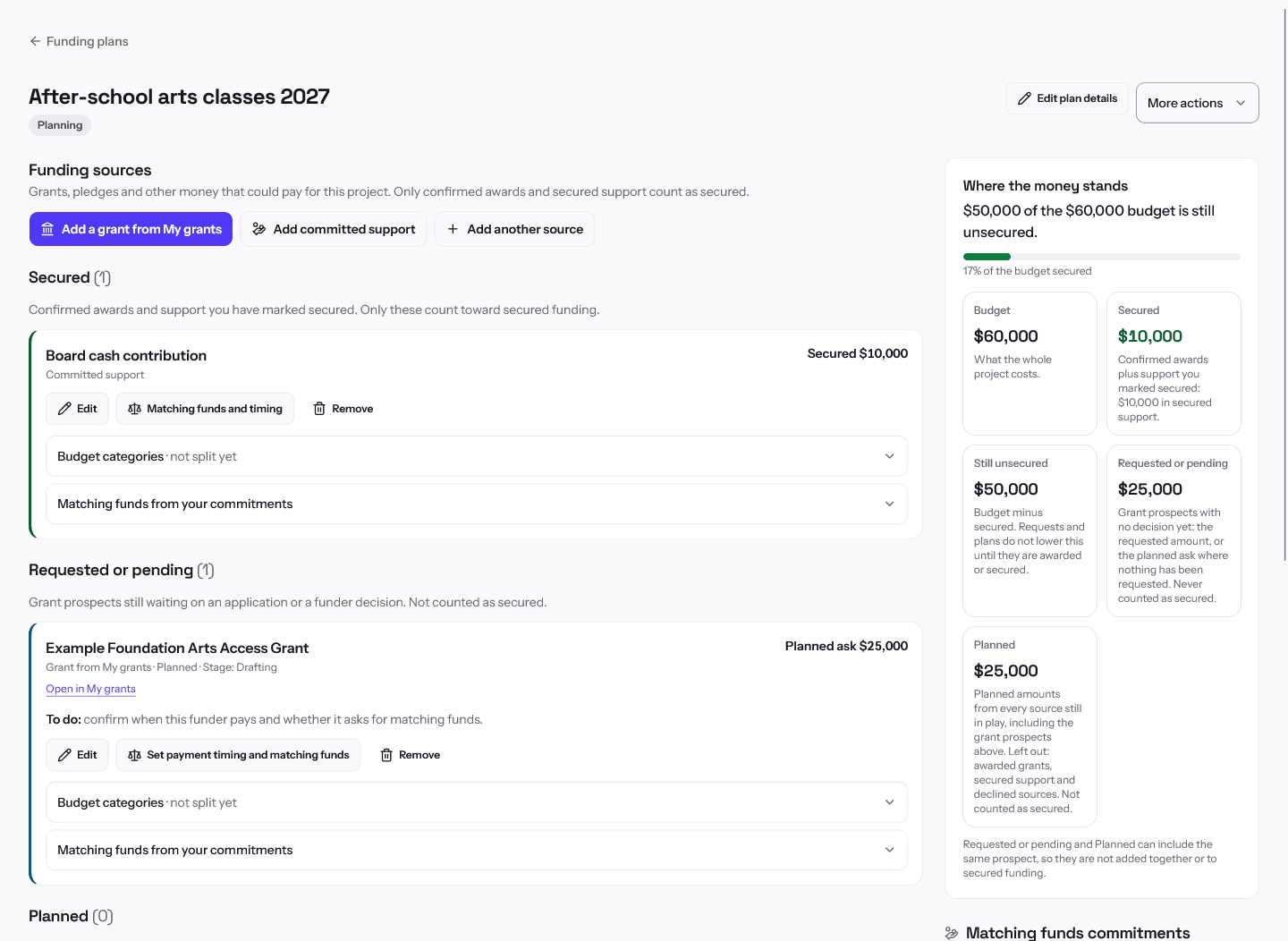
A funding plan covers one project. It lines up the project's budget with the grants and other money that could pay for it, so you can see what is secured and what is missing before you apply. GrantCue does the arithmetic on the numbers you enter. It does not decide what a funder will accept.
Create a plan
- Open Funding plans and choose New funding plan.
- Enter the Project name and the Project budget. Use 0 for the budget if you do not know it yet.
- Optionally add the Purpose, a Status (Planning, Active or Completed), Start date, End date, Where the project benefits people and Who benefits.
- Choose Create plan. The plan opens.
Anyone in the organization can view plans. Creating and changing them needs grant editing access. Without it the page tells you to ask an organization admin.
Add funding sources
- Add a grant from My grants counts a saved grant in the plan. A grant can count in only one plan at a time. Pick an Intent (Considering, Planned or Not pursuing) and enter a Planned ask and, if you have applied, the Requested amount.
- Add committed support is for money already promised or confirmed outside GrantCue, such as a board pledge or a city contribution. Enter a Name and an Amount, then mark it Pledged or Secured.
- Add another source is for anything else you are counting on, such as a fundraiser or earned revenue. Other sources never count as secured. If the money is confirmed, add it as committed support instead.
Each source shows in a group: Secured, Awarded (needs confirmation), Requested or pending, Planned, Declined or not pursuing, or Removed. Awarded (needs confirmation) holds awards GrantCue knows about only from a stage or an import. Confirm the award to count it as secured.
Read Where the money stands
The summary card shows Budget, Secured, Still unsecured, Requested or pending and Planned. Secured is confirmed awards plus support you marked secured. Still unsecured is the budget minus Secured, and requests and plans do not lower it until they are awarded or secured. Requested or pending and Planned can include the same grant, so do not add them together. The card says Fully funded only when secured money covers the whole budget.
Matching funds and timing
- On a source, choose Matching funds and timing.
- Answer Does the funder require matching funds? If yes, choose how they are calculated (a percent of the award, a percent of the total project cost, or a fixed dollar amount) and what counts as matching funds (cash, in-kind or either).
- Choose When does the funder pay: Paid up front, Reimbursement (you pay first) or In installments.
- Choose Save matching funds and timing. A preview shows the Matching funds to plan for as you type.
Matching funds commitments are the cash and in-kind support your organization can offer as matching funds. They belong to the organization, not to one plan. Add a matching funds commitment with a Name, Cash or In-kind, an Available amount and a Status (Pledged, Secured or Withdrawn). Then open Matching funds from your commitments on a source to allocate part of one. A commitment can be shared across plans but not beyond its available amount. Use Release to take an allocation back. A commitment can be deleted only after its allocations are released.
Budget categories and checks
Budget categories on a source splits its money across categories such as Personnel, Travel and Equipment. Checks before you apply then points out categories covered by more than one source, allocations beyond the budget, and reimbursement sources that need cash up front. These are things to look at, not blocks.
Remove, archive and history
- Remove on a source moves it to Removed so it stops counting. Its history is kept and Restore to plan brings it back.
- More actions > Archive plan moves a plan to Archived plans at the bottom of the page. Restore plan brings it back.
- History on the plan lists what changed.
Related articles
Questions about a feature or a plan?Contact us